How to enable Smooth Motion in NVIDIA App

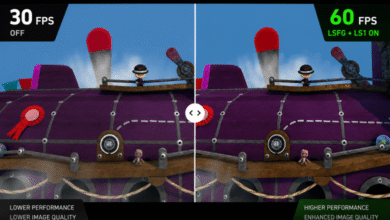
Smooth Motion uses AI to deliver a smoother gaming experience by generating an additional frame between two rendered frames. It was initially introduced exclusively for RTX 50 Series graphics cards through the NVIDIA App and was supported only in DirectX 11/12 games. NVIDIA later extended support to the RTX 40 Series and added Vulkan compatibility.
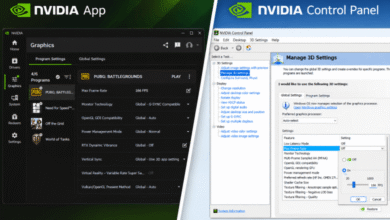
This article explains how to enable Smooth Motion in the NVIDIA App. The NVIDIA App replaces both GeForce Experience and the traditional NVIDIA Control Panel. It provides tools for configuring game settings, accessing the in-game overlay, managing RTX technologies (including Smooth Motion), and recording gameplay.
Table of contents:
What is NVIDIA Smooth Motion?
According to NVIDIA, Smooth Motion is a new driver-based AI model that delivers a smoother gaming experience. In simple terms, the Optical Flow Accelerator (OFA) analyzes the differences between two consecutive frames, tracks pixel motion vectors, and generates an interpolated frame.
It allows you to increase FPS in DirectX 11, DirectX 12, and Vulkan games that do not support DLSS Frame Generation. It is officially supported on GeForce RTX 40 Series and RTX 50 Series graphics cards with GeForce driver version 590.26 or later. In theory, the RTX 30 Series could also gain support for this feature, at least to some extent.
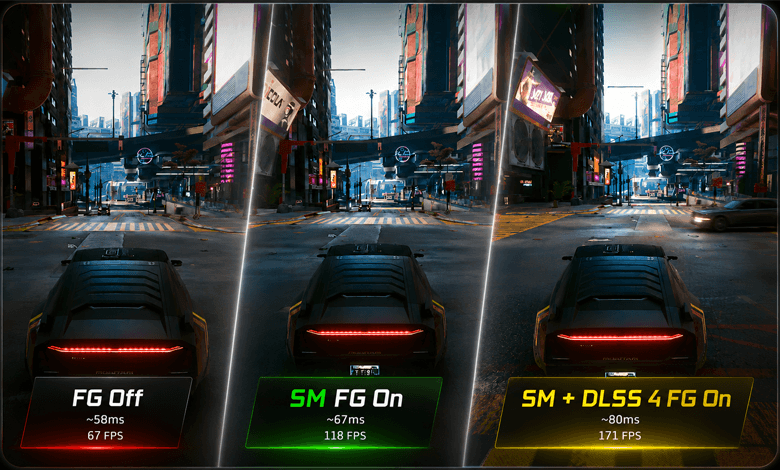
In practice, Smooth Motion and DLSS 4 Frame Generation are compatible and can be used simultaneously. To verify this, Cyberpunk 2077 was tested at Ultra settings and 1440p resolution with DLSS 4 Quality and DLSS 4 Frame Generation enabled on a system powered by an i7-14700F and an RTX 4070.
| Native | 72 FPS | ~ 58 ms |
| NVIDIA Smooth Motion | 125 FPS | ~ 67 ms |
| DLSS 4 Frame Generation | 117 FPS | ~ 64 ms |
| NVIDIA SM + DLLS 4 FG | 178 FPS | ~ 80 ms |
How to turn on NVIDIA Smooth Motion
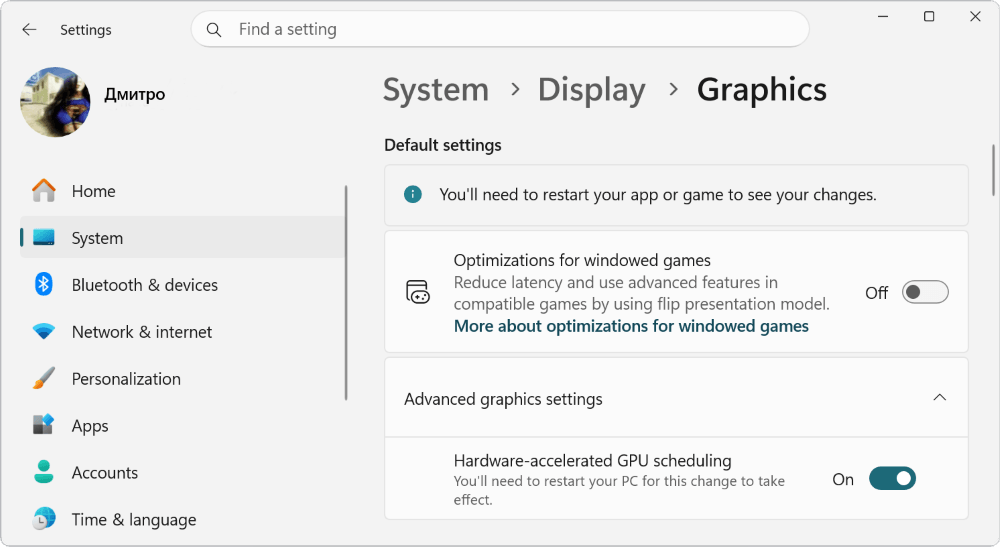
First, you need to enable hardware-accelerated GPU scheduling. Open Settings > System > Display > Graphics > Advanced graphics settings and turn on Hardware-accelerated GPU scheduling. You’ll need to restart your PC for the changes to take effect.
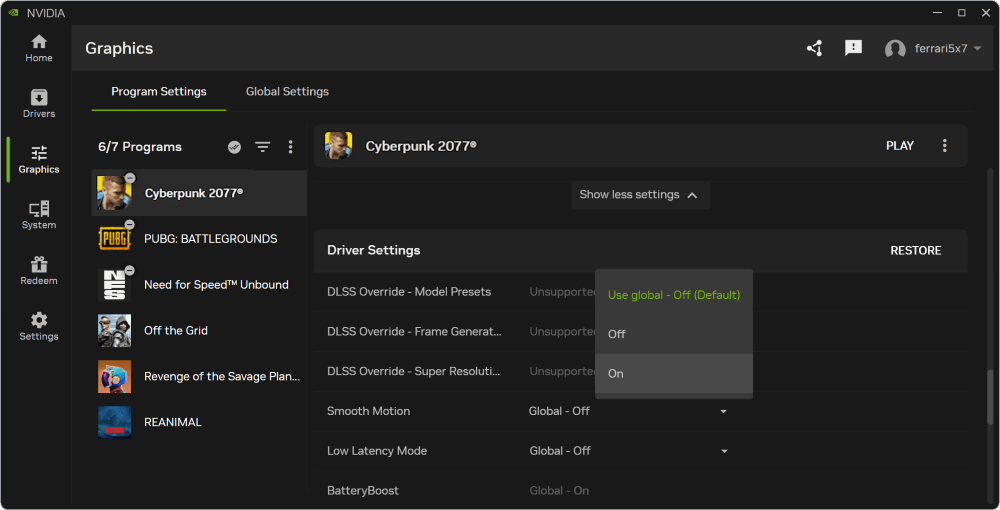
In the NVIDIA App, open Graphics > Program Settings and select the game profile. In the settings list, find Smooth Motion and set it to Enabled.
The built-in overlay can show whether Smooth Motion is active. Open Settings > Features and enable NVIDIA Overlay Features. Then press Alt+Z, select Statistics > View All, and enable the Smooth Motion (SM) indicator at the bottom of the list.
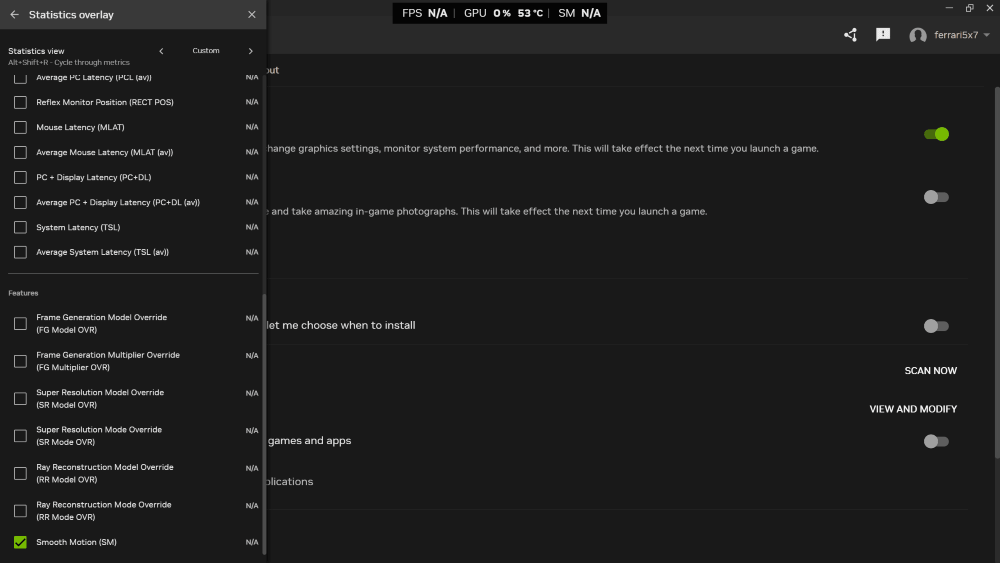
In the same menu, click Show statistics in heads up display. You can quickly toggle the overlay on or off using the Alt+R keyboard shortcut. An SM indicator will appear next to the FPS and temperature readings, clearly showing whether Smooth Motion is currently active.
Important! Avoid enabling Smooth Motion globally. The feature is intended only for games that do not support DLSS. However, real-world testing has shown that Smooth Motion and DLSS Frame Generation can be used simultaneously. It all depends on the specific game.
Configuration with NVIDIA Profile Inspector
As with the Resizable BAR feature, the NVIDIA driver already includes certain settings (a game whitelist). NVIDIA Profile Inspector allows you to view and modify game profiles. Select a game profile, such as Escape From Tarkov, find Smooth Motion – Enable, and set it to On.
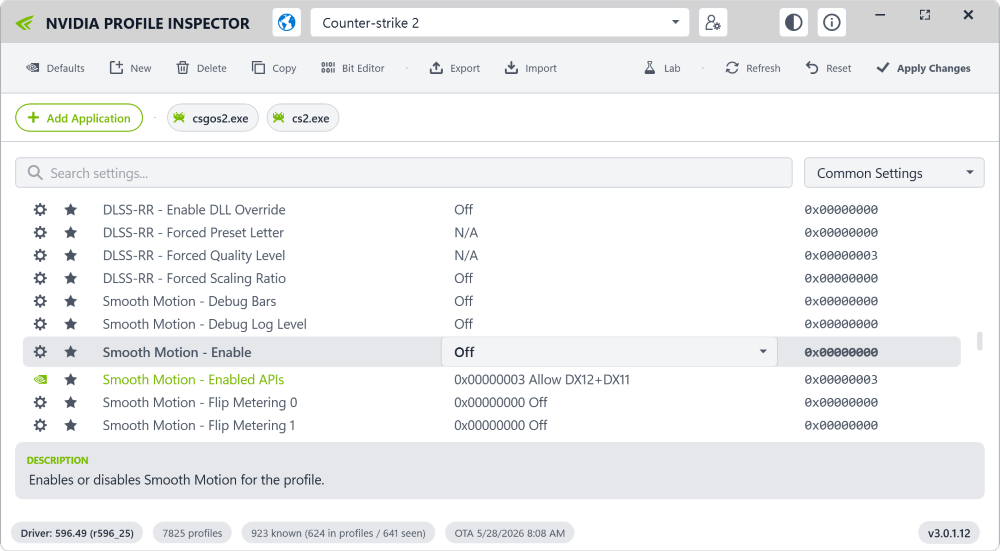
You may only need Smooth Motion – Enable and Enable APIs, although NVIDIA Profile Inspector has found additional settings.
| Smooth Motion – Debug Bars | Enables a developer overlay that displays diagnostic data |
| Smooth Motion – Debug Log Level | 0 — Enable or disable log recording 1 — Log only detected errors 2 — Basic information only 3 — Detailed debug information |
| Smooth Motion – Enable | Enables or disables frame generation |
| Smooth Motion – Enable APIs | 0x00000000 — All APIs disabled 0x00000001 — DirectX 12 only 0x00000002 — DirectX 11 only 0x00000003 — DirectX 11 and DirectX 12 0x00000004 — Vulkan only 0x00000005 — DirectX 12 and Vulkan 0x00000006 — DirectX11 та Vulkan 0x00000007 — DirectX 11, DirectX 12, and Vulkan |
| Smooth Motion – Flip Metering 0 | Low-level frame synchronization settings that are best left unchanged |
| Smooth Motion – Flip Metering 1 |
If a game fails to launch after Smooth Motion has been enabled, you should check that the correct API value is set. By default, Smooth Motion – Feature Flags uses the value 0x00000007, which enables all APIs (DirectX 11, DirectX 12, and Vulkan).
The NVIDIA driver then checks which APIs the game supports and disables those that are incompatible. In some cases, this can result in an API being enabled even if the game does not support it. According to user reports, such issues have occurred in Counter-Strike 2, Fortnite, and Battlefield V.
Conclusions
The NVIDIA Smooth Motion feature is based on frame interpolation at the driver level, similar to AMD Fluid Motion Frames. There is also a separate app called Lossless Scaling (LSFG), which works on all graphics cards, including integrated graphics. However, it only processes the final image, analyzes it, and generates intermediate frames.
NVIDIA states that games are manually added to a whitelist after compatibility testing. This is why we use NVIDIA Profile Inspector—to view game profiles. Of course, technologies integrated into the driver usually perform better, with lower latency, higher performance, and lower resource usage.