NVIDIA Maximum Frame Rate: What should you choose?

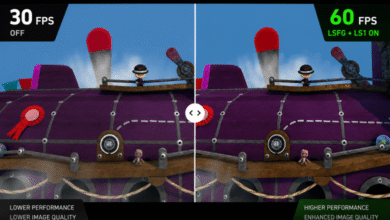
A global FPS limiter was introduced in the NVIDIA GeForce 441.87 WHQL driver. The update was officially released on January 6, 2020. Modern PCs are capable of delivering more than 300 frames per second in games, while most users have monitors with much lower refresh rates.
This article explains what the Maximum Frame Rate setting does and whether it should be enabled. FPS limiting can be configured in the NVIDIA Control Panel. It can be useful for extending laptop battery life, reducing input latency, and in a variety of other situations.
Table of contents:
What does Maximum Frame Rate mean?
This setting determines the maximum frame rate at which the GPU can render a game or 3D application. Users often enable it to reduce power consumption or cap the frame rate slightly below the refresh rate of a G-SYNC display.
When this setting was introduced, users wondered what it was and what it was for. Today, there are several scenarios where it can be useful:
- Reducing GPU load — there is no point in having the graphics card render 300 frames per second if the monitor can only display 165. A simple FPS cap can significantly reduce power consumption.
- Power-saving mode — limiting the frame rate can help extend laptop battery life. Windows may also reduce the display refresh rate by default.
- Reducing input latency — a properly set FPS cap can reduce the render queue and, consequently, input latency. This is especially relevant when the GPU is running at 100% utilization.
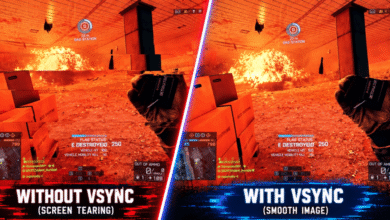
- Avoiding screen tearing — limiting the FPS below the monitor’s maximum refresh rate helps prevent exceeding the VRR range when using G-SYNC Compatible.
What should you choose?
| Gaming PC | Set the FPS limit a few frames above the display’s refresh rate. This reduces GPU load and power consumption. |
| Low Performance | Set the maximum frame rate a few frames below the display’s refresh rate. In some cases, this can reduce latency, similar to V-Sync. |
| Battery Power | Use a 30 FPS limit in this mode. If necessary, power-saving mode can be disabled manually. |
How to set NVIDIA Maximum Frame Rate
NVIDIA App
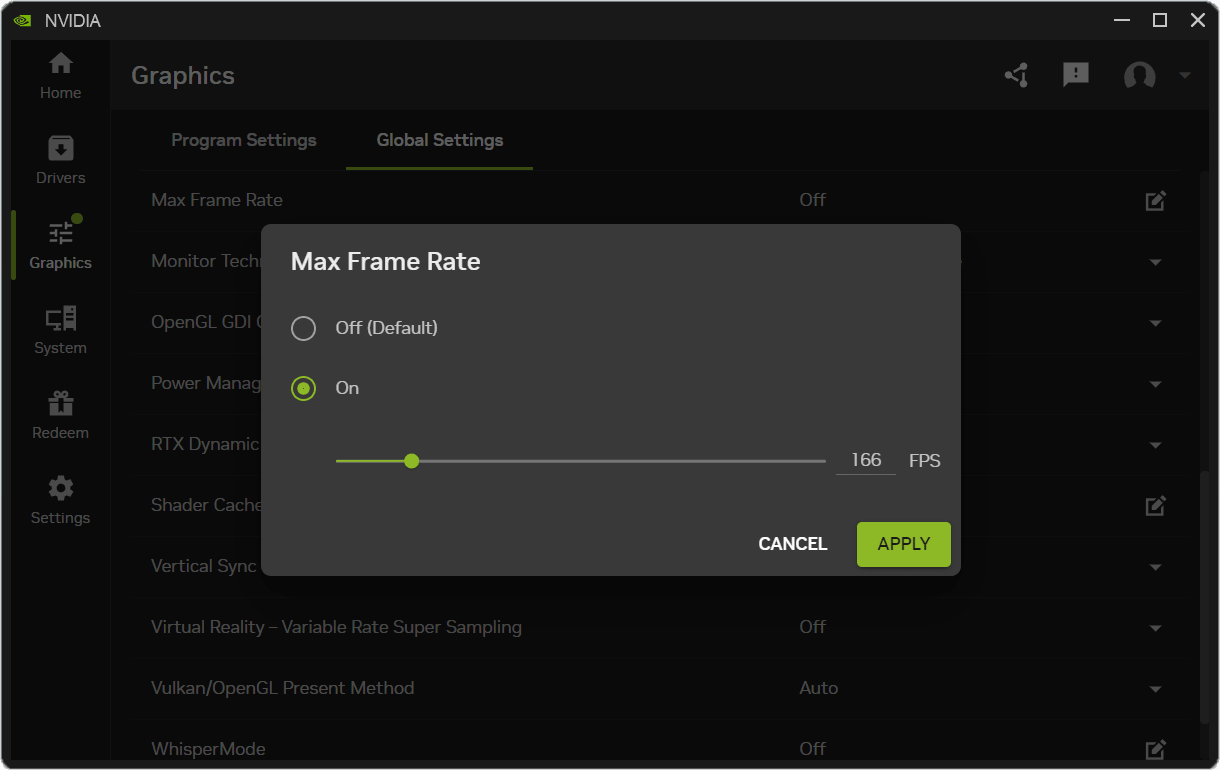
Open Graphics > Global Settings and find Maximum Frame Rate. Select On, enter the desired FPS value, and click Apply. It is Off by default.
NVIDIA Control Panel
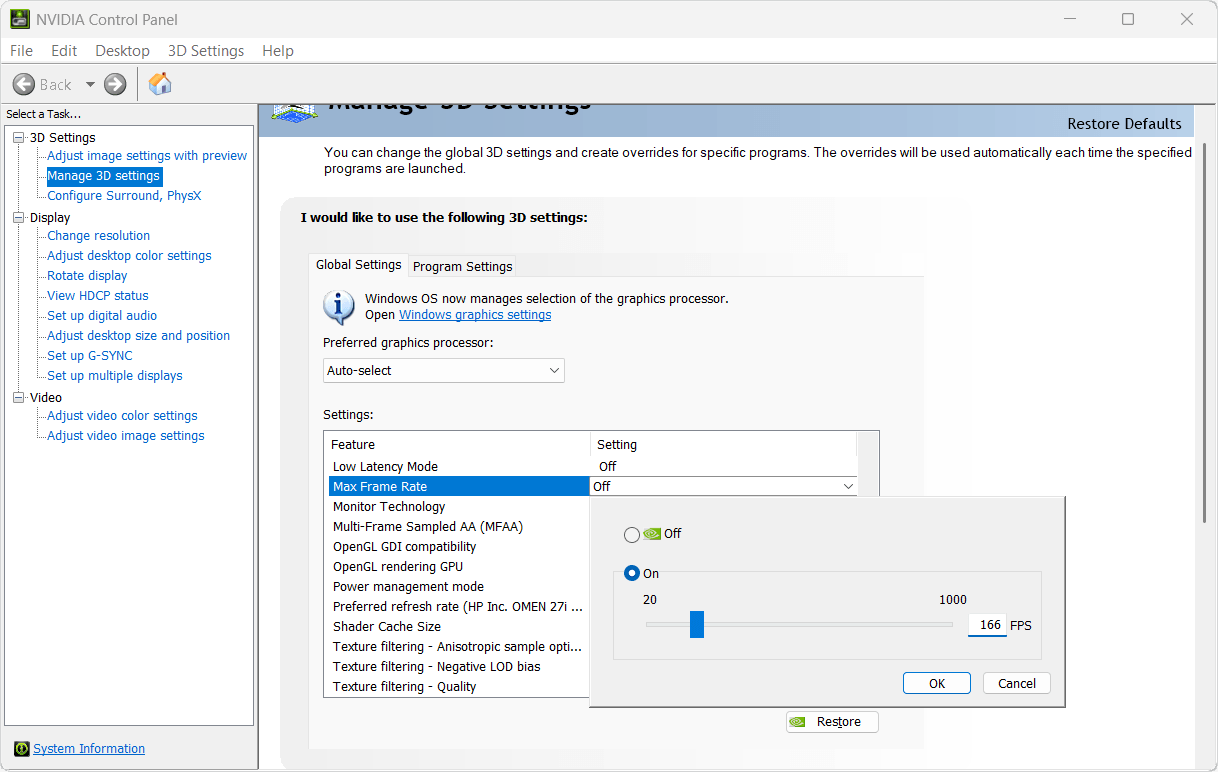
Go to 3D Settings > Manage 3D Settings > Global Settings. Set Maximum Frame Rate to On, adjust the slider, and click OK.
NVIDIA Profile Inspector
For more advanced control over the graphics driver, you can use NVIDIA Profile Inspector. Find the Frame Rate Limiter V3 setting in the list and change its value.
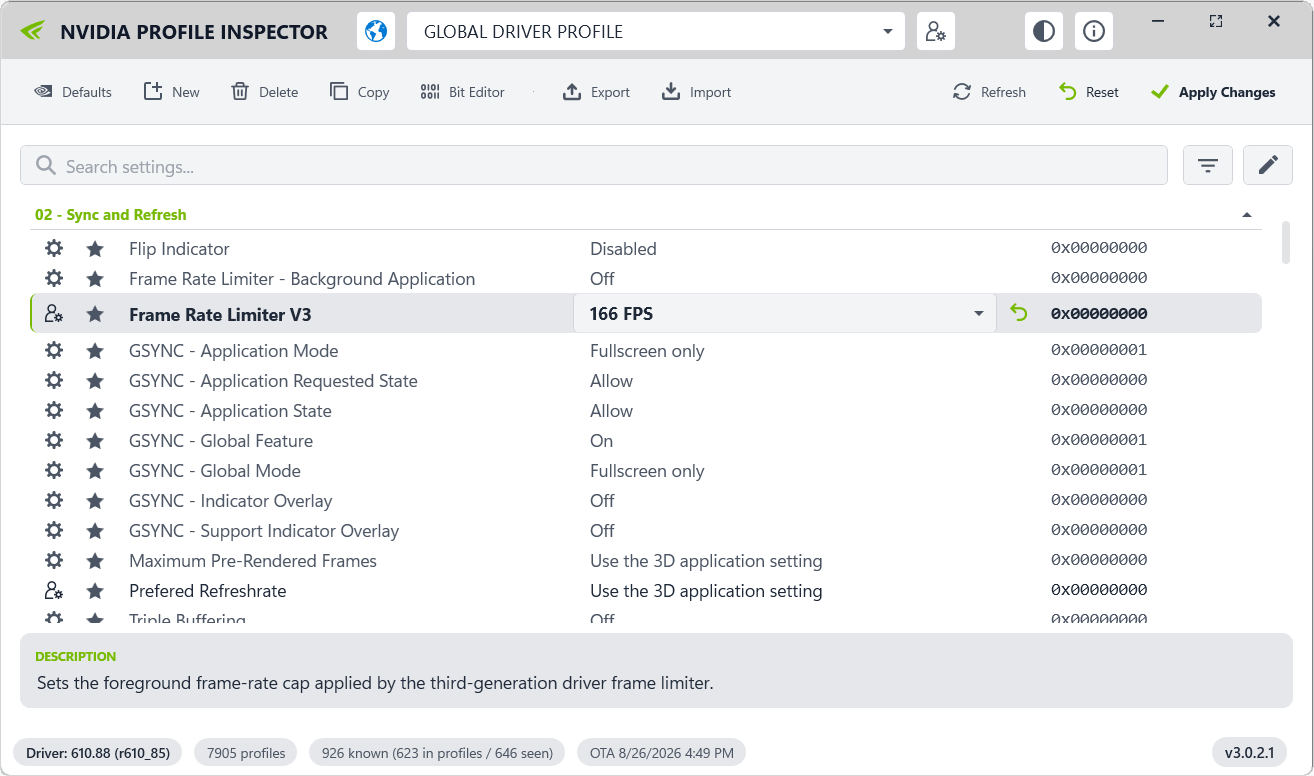
The Frame Rate Limiter – Background Application setting controls the FPS limit when you minimize a game to the desktop. This is another useful feature that is not available in the NVIDIA Control Panel.
How to limit the frame rate for a specific game
You can configure global 3D settings and create overrides for specific applications. These overrides will be applied whenever the corresponding applications are launched.
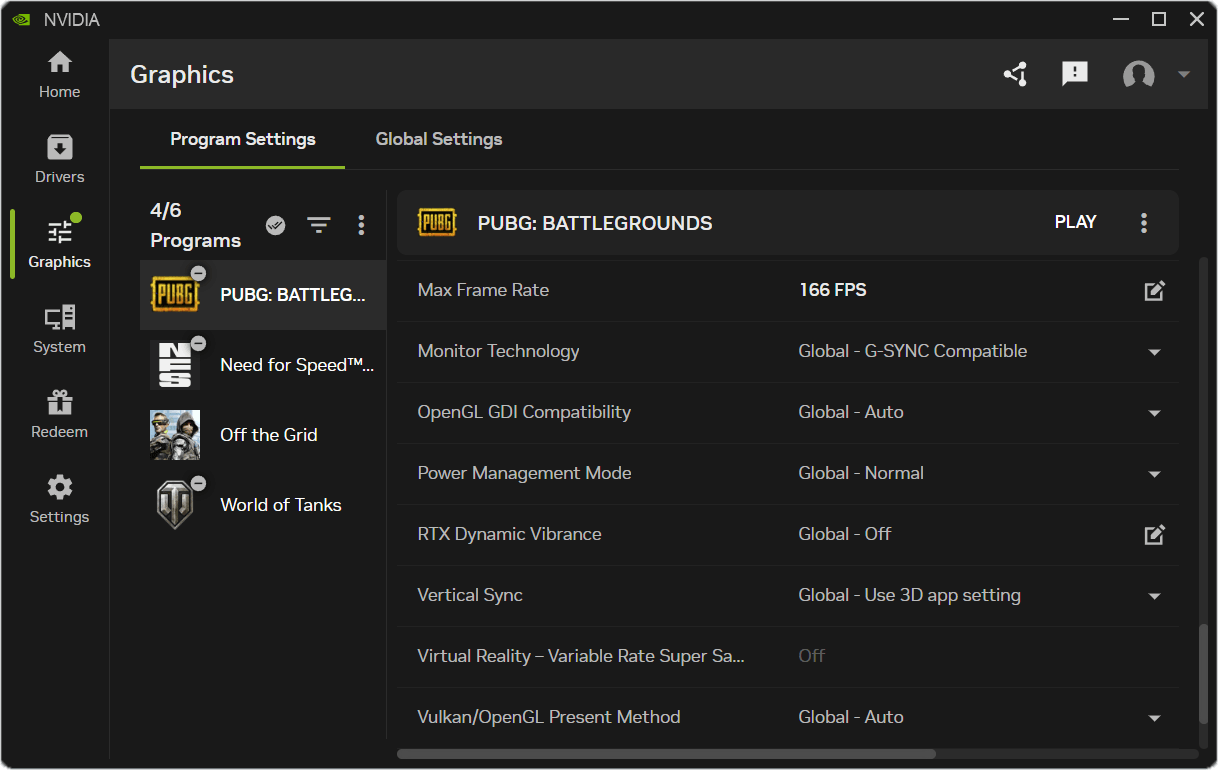
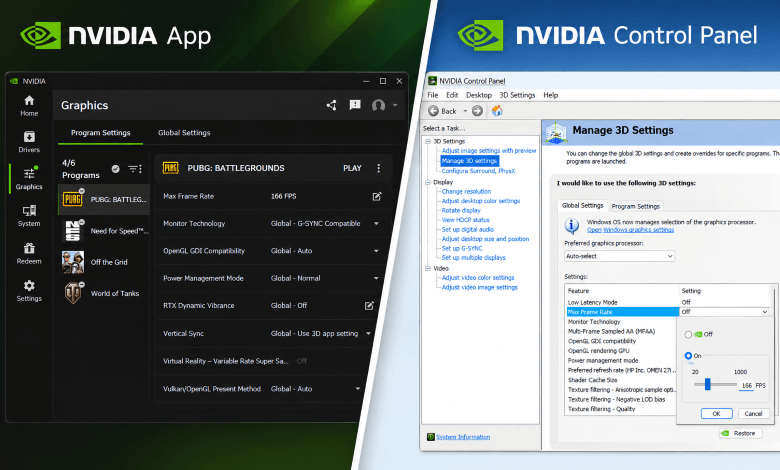
Open NVIDIA App and go to Graphics > Program Settings. Find PUBG: Battlegrounds in the list. If it is not listed, click the three dots and select Add Program. On the right, set the desired Maximum Frame Rate value.
Final thoughts
Previously, the NVIDIA Control Panel was the only available option, but now there is the updated NVIDIA App, as well as the convenient NVIDIA Profile Inspector tool. Simply set the maximum frame rate to reduce power consumption without affecting the gaming experience.
Sometimes, you can find an FPS limit setting directly in the game itself. Maximum Frame Rate sets the upper FPS limit, but it does not guarantee that the game will run at that frame rate. If your system cannot deliver 120 FPS, setting the limit to 165 FPS will not make the game run faster.