NVIDIA Vertical Sync. What should you set?

Modern gaming monitors can display up to 1,000 frames per second. Vertical synchronization determines how the frame rendering rate relates to the display’s refresh rate. Usage scenarios may vary, but the primary goal is to eliminate visible screen tearing.
This article explains which NVIDIA vertical synchronization settings are best to use. It can usually be enabled in the game or in the graphics card driver. It can work on its own or together with G-SYNC or FreeSync. With V-Sync enabled, screen tearing is eliminated, but input latency may increase.
Table of contents:
What is Vertical Sync?
Vertical synchronization is a collection of settings that determine how the frame rendering rate relates to the monitor’s refresh rate. The purpose of this feature is not only to limit the maximum number of frames per second but also to eliminate screen tearing when it occurs.
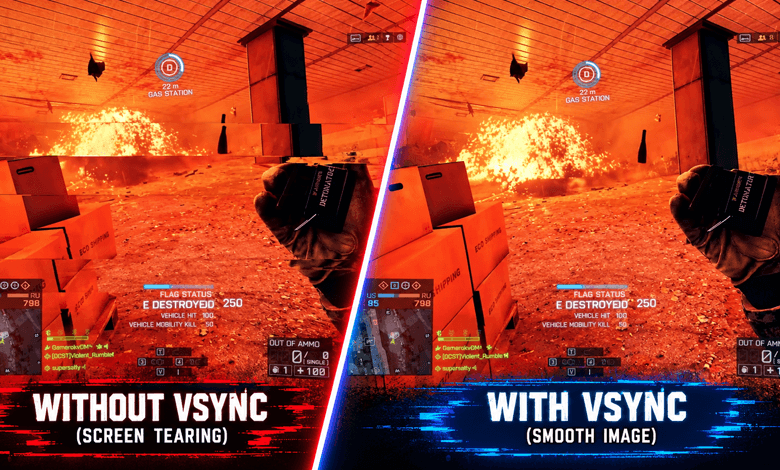
What is screen tearing? A monitor has a refresh rate of 165 Hz, meaning it can display up to 165 frames per second. If the graphics card generates 240 FPS, the monitor may display parts of two different frames at the same time. This creates horizontal tearing lines on the screen, making the image appear torn.
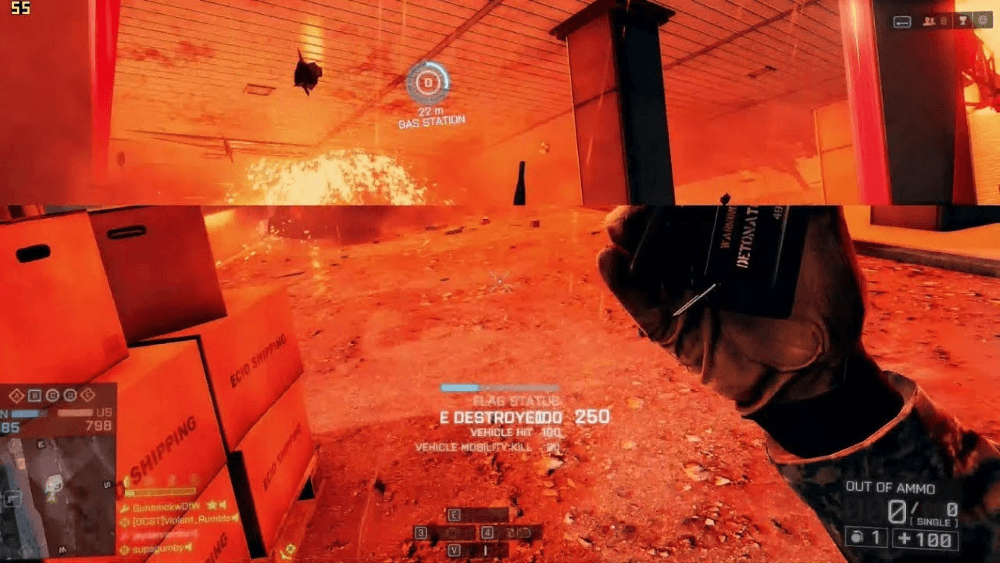
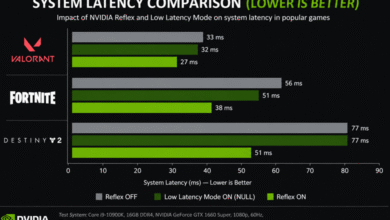
After enabling vertical synchronization, the graphics card waits for the monitor’s current refresh cycle to finish before sending the next frame. This prevents a new frame from being sent while the previous one is still being displayed, eliminating screen tearing. Similar to NVIDIA Low Latency Mode.
For example, I don’t need 250 FPS in World of Tanks, which my AMD Ryzen 5 3600 and Gigabyte GTX 1080 can deliver, since my HP Omen 27i monitor can display only up to 165 FPS. This reduces GPU load, but may sometimes increase input lag.
NVIDIA Vertical Sync settings
- Off — allows the GPU to render without being constrained by the refresh rate and scan out multiple rendered frames during a single refresh interval. Causes screen artifacts such as tearing, but provides very low latency and high performance.
- On — limits the GPU render rate to the maximum refresh rate of your display and prevents tearing. However, it can result in higher latency and lower performance due to the render rate limit. It can also cause stuttering if the GPU render rate falls below the refresh rate.
- Fast — the GPU renders without constraints, similar to V-SYNC Off, but does not cause tearing because frames exceeding the monitor’s refresh rate are dropped. Provides latency that is very close to V-SYNC Off without tearing.
- Adaptive — limits the GPU render rate similar to V-SYNC On; however, if the render rate drops below the refresh rate, it allows tearing. A good compromise between latency and visual quality.
- Adaptive (half refresh rate) — limits the GPU render rate to half the monitor’s maximum refresh rate. Can reduce stuttering in games with low FPS.
How to enable Vertical Sync
NVIDIA App
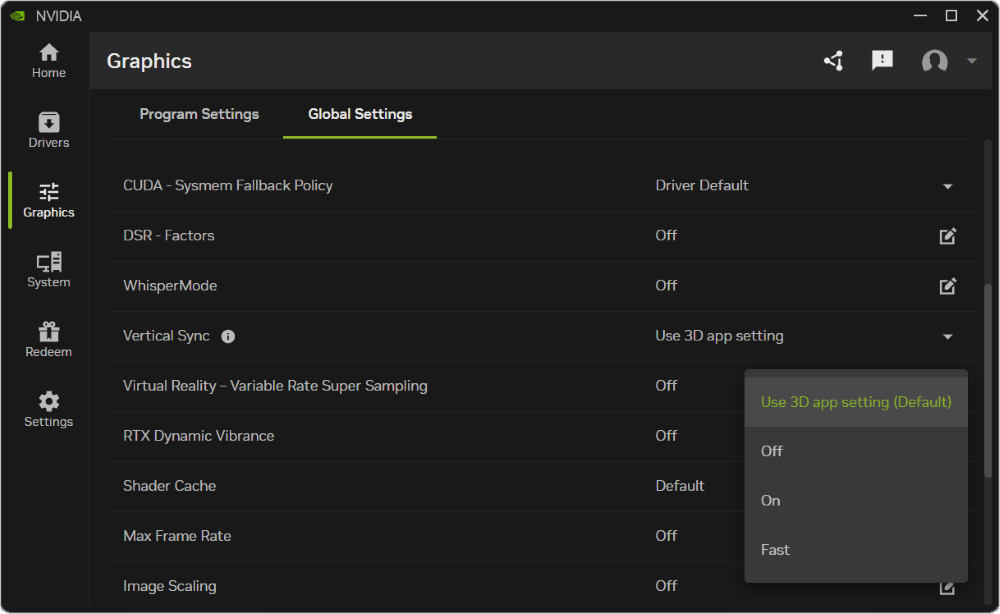
In the updated NVIDIA App, open Graphics > Global Settings > Vertical Sync. By default, it is set to Use the 3D application setting — in this case, the game controls this setting. To override the game’s settings, change it to On or Fast.
NVIDIA Control Panel
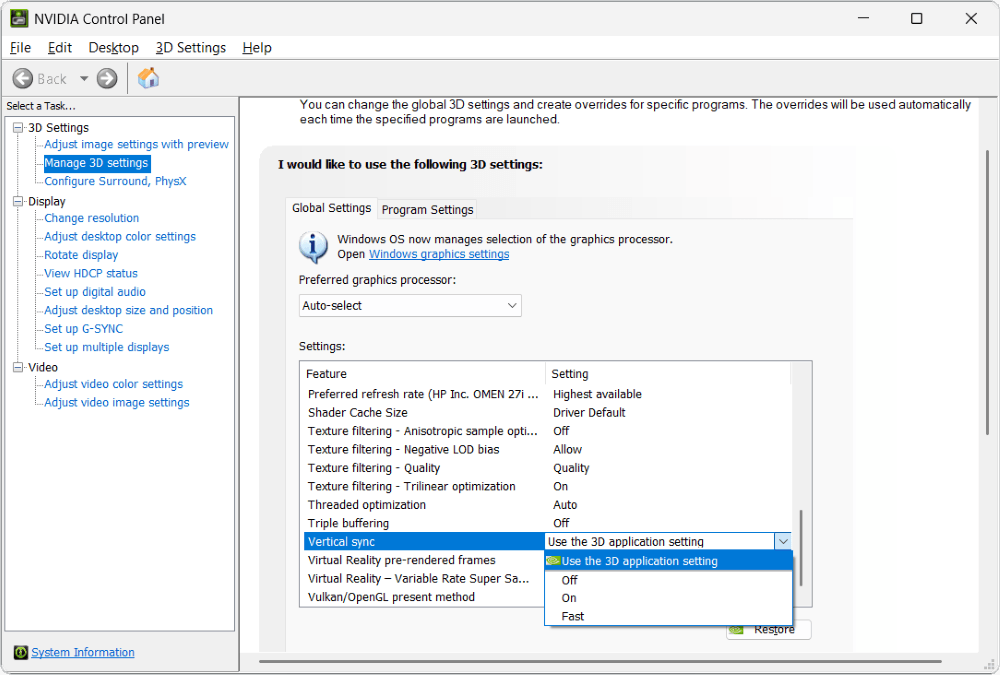
Open the NVIDIA Control Panel and go to 3D Settings > Manage 3D Settings. Select Global Settings to apply the setting to all applications, or Program Settings to configure it for a specific application. Set Vertical Sync to On.
NVIDIA Profile Inspector
In short, this application allows you to view driver-level settings. You can download NVIDIA Profile Inspector and use it for free. Game profiles already include settings optimized by NVIDIA’s testers.
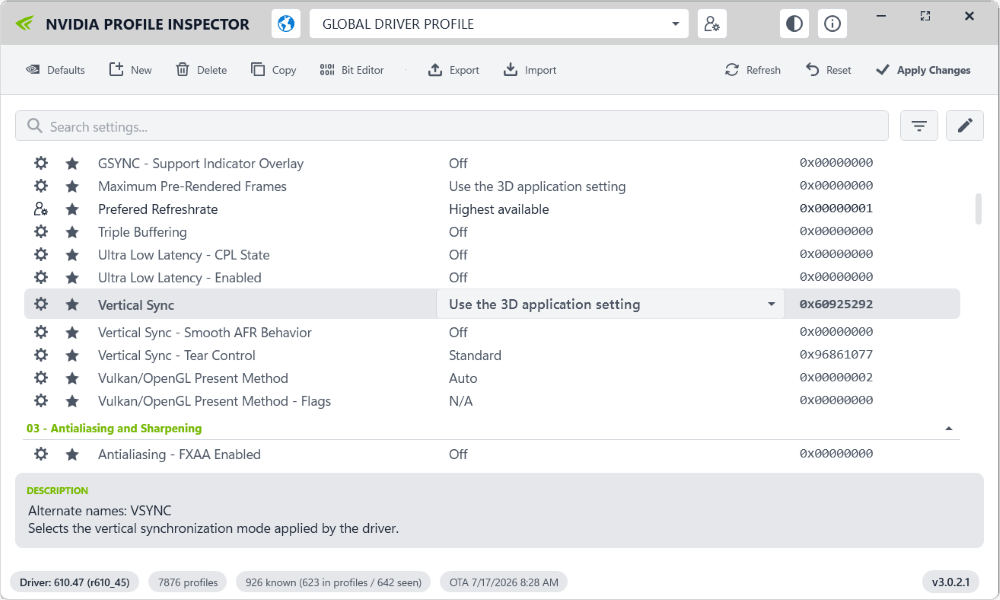
Select a specific game, find the Vertical Sync setting, and set it to Force On. If you make changes to the GLOBAL DRIVER PROFILE, vertical synchronization will be enabled for all applications.
| Vertical Sync | Force Off — forcibly disables vertical synchronization regardless of other settings Force On — enables vertical synchronization for the selected game profile Fast Sync — eliminates most screen tearing without significantly increasing input lag 1/2 Refresh Rate — FPS limited to half the monitor’s refresh rate 1/3 Refresh Rate — one-third of the refresh rate 1/4 Refresh Rate — one-quarter of the refresh rate |
| Vertical Sync — Smooth AFR Behavior | Off — all AFR optimizations are disabled. The default setting for most profiles. On — enables AFR mode, in which two or more graphics cards (SLI) render frames alternately. |
| Vertical Sync — Tear Control | Standart — the standard vertical synchronization algorithm and the default setting Adaptive — works normally, but when FPS drops below the refresh rate, V-Sync is automatically disabled. |
NVIDIA Max Frame Rate setting
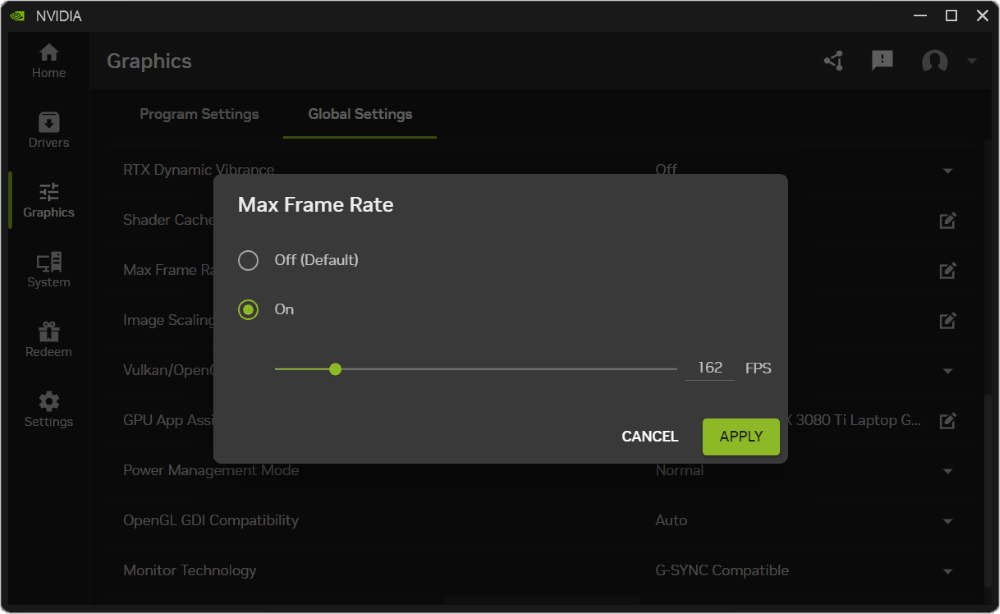
Since a high frame rate can cause screen tearing, the maximum FPS can be limited without enabling vertical synchronization. In some cases, this can completely eliminate tearing, reduce GPU load, and avoid any noticeable increase in input latency.
Open NVIDIA App > Graphics > Global Settings and find Max Frame Rate. Set it to On and enter the desired FPS value.
Final thoughts
Indeed, there are situations where vertical synchronization eliminates all screen tearing. Personally, I don’t use this feature because simply limiting the maximum frame rate is enough for me. When possible, I use G-SYNC because my FPS is usually lower than my monitor’s refresh rate.
Only testing on your own system will show how effective vertical synchronization is. NVIDIA has added Fast and Adaptive modes to the driver settings. In theory, they can eliminate most screen tearing without significantly increasing input lag.